> For the complete documentation index, see [llms.txt](https://docs.riff.ai/llms.txt). Markdown versions of documentation pages are available by appending `.md` to page URLs; this page is available as [Markdown](https://docs.riff.ai/guides/connecting-tripletex-to-riff-step-by-step.md).
# Connecting Tripletex to Riff: step-by-step
How to create an API employee token in Tripletex so your Riff apps can read accounting data.
{% hint style="info" %}
Before you start
1. You need administrator rights in Tripletex to create an API key. If you don't have them, the daglig leder / admin in your firm must either grant you access (Brukertilgang) or create the key for you.
2. Riff's connection is read-only — Tripletex does not allow write access via this route.
{% endhint %}
## Part A — In Tripletex
Step 1 — Activate Integrations (Integrasjoner)
1. Go to My subscription (Mitt abonnement) in the left menu.
2. Scroll to the Integrations (Integrasjoner) row.
3. If it shows a green dot / Active (Aktivert), skip to Step 2.
4. Otherwise click Activate (Aktiver). It costs NOK 0/month.

 The Integrations row in My Subscription — this is what "Active" looks like.\
### Step 2 — Open API access on your profile (API-tilgang)
1. Click your name (top right) → My profile / My settings (Min profil / Mine innstillinger).
2. Look for the tab API access (API-tilgang).
3. On a narrower screen it is hidden behind More (Mer) at the end of the tab row.
 API access, shown here inside the dropdown menu.
### Step 3 — Create a new key (Ny nøkkel)
1. Under API employee tokens (API-brukernøkler), check whether a key for Riff already exists in the list.
2. If not, click New token (Ny nøkkel).
API access, shown here inside the dropdown menu.
### Step 3 — Create a new key (Ny nøkkel)
1. Under API employee tokens (API-brukernøkler), check whether a key for Riff already exists in the list.
2. If not, click New token (Ny nøkkel).
 The New employee token dialog.
### Step 4 — Select Riff as the application (Applikasjon)
1. In the dialog, open the Application (Applikasjon) dropdown and choose Riff.
2. Leave Adapted setup (Tilpasset oppsett) unticked — selecting Riff sets the right permissions automatically.
{% hint style="warning" %}
**If Riff is not in the list.** If Riff is not in the list: go back to Step 1 and confirm Integrations is active, then reload the page.
{% endhint %}
### Step 5 — Name and create the key
1. Give the token a name (Gi nøkkelen et navn) — e.g. Riff.ai.
2. Click Create token (Opprett nøkkel).
3. Copy the key immediately (Kopier) — Tripletex shows it only once. Keep it somewhere safe until Part B is done.
## Part B — In Riff (your own workspace)
### Step 6 — Open the Tripletex connection
1. In your Riff workspace go to Admin → Connections.
2. Find the Tripletex Production card and click on the card itself — not the "Add to context" button.
The New employee token dialog.
### Step 4 — Select Riff as the application (Applikasjon)
1. In the dialog, open the Application (Applikasjon) dropdown and choose Riff.
2. Leave Adapted setup (Tilpasset oppsett) unticked — selecting Riff sets the right permissions automatically.
{% hint style="warning" %}
**If Riff is not in the list.** If Riff is not in the list: go back to Step 1 and confirm Integrations is active, then reload the page.
{% endhint %}
### Step 5 — Name and create the key
1. Give the token a name (Gi nøkkelen et navn) — e.g. Riff.ai.
2. Click Create token (Opprett nøkkel).
3. Copy the key immediately (Kopier) — Tripletex shows it only once. Keep it somewhere safe until Part B is done.
## Part B — In Riff (your own workspace)
### Step 6 — Open the Tripletex connection
1. In your Riff workspace go to Admin → Connections.
2. Find the Tripletex Production card and click on the card itself — not the "Add to context" button.
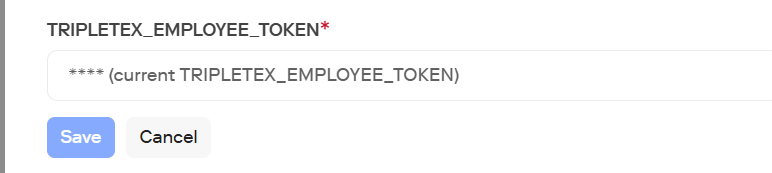
 ### Step 7 — Add your Employee Token
1. Click Update.
2. Paste your key into the Employee Token field.
3. Leave Consumer Token as it is — Riff has already filled this in for you.
4. Click Save.
### Step 7 — Add your Employee Token
1. Click Update.
2. Paste your key into the Employee Token field.
3. Leave Consumer Token as it is — Riff has already filled this in for you.
4. Click Save.

 ### Step 8 — Test it
Open (or create) an app in your workspace and ask Riff to pull something simple from Tripletex — e.g. list the company's customers or the latest ledger accounts. If data comes back, you're connected.
---
# Agent Instructions
This documentation is published with GitBook. GitBook is the documentation platform designed so that both humans and AI agents can read, navigate, and reason over technical content effectively. Learn more at gitbook.com.
## Querying This Documentation
If you need additional information that is not directly available in this page, you can query the documentation by asking a question.
Perform an HTTP GET request on the following URL with the `ask` and `goal` query parameters:
```
GET https://docs.riff.ai/guides/connecting-tripletex-to-riff-step-by-step.md?ask=&goal=
```
`ask` is the immediate question: it should be specific, self-contained, and written in natural language.
`goal` is what the user is ultimately trying to achieve, the reason they need the answer. Sharing it helps GitBook give you a better, more relevant answer. A goal is most helpful when it describes the outcome the user wants rather than restating the question. For example, with `ask=how do I create an API token`, a goal like `automate deployments from our CI pipeline` lets GitBook tailor the answer to that use case.
The response will contain a direct answer to the question and relevant excerpts and sources from the documentation.
Use this mechanism when the answer is not explicitly present in the current page, you need clarification or additional context, or you want to retrieve related documentation sections.
### Step 8 — Test it
Open (or create) an app in your workspace and ask Riff to pull something simple from Tripletex — e.g. list the company's customers or the latest ledger accounts. If data comes back, you're connected.
---
# Agent Instructions
This documentation is published with GitBook. GitBook is the documentation platform designed so that both humans and AI agents can read, navigate, and reason over technical content effectively. Learn more at gitbook.com.
## Querying This Documentation
If you need additional information that is not directly available in this page, you can query the documentation by asking a question.
Perform an HTTP GET request on the following URL with the `ask` and `goal` query parameters:
```
GET https://docs.riff.ai/guides/connecting-tripletex-to-riff-step-by-step.md?ask=&goal=
```
`ask` is the immediate question: it should be specific, self-contained, and written in natural language.
`goal` is what the user is ultimately trying to achieve, the reason they need the answer. Sharing it helps GitBook give you a better, more relevant answer. A goal is most helpful when it describes the outcome the user wants rather than restating the question. For example, with `ask=how do I create an API token`, a goal like `automate deployments from our CI pipeline` lets GitBook tailor the answer to that use case.
The response will contain a direct answer to the question and relevant excerpts and sources from the documentation.
Use this mechanism when the answer is not explicitly present in the current page, you need clarification or additional context, or you want to retrieve related documentation sections.